Once you have added products to the shopping cart in the Vektori app, you can edit a specific line or multiple lines by tapping the product in the shopping cart.
Tapping a product in the shopping cart once will open the edit window. If you want to edit multiple products, you can either tap and drag the window to edit it or press the cross to close the edit window.
Please note that pressing the cross button closes the window, and it will reopen when you click another product.
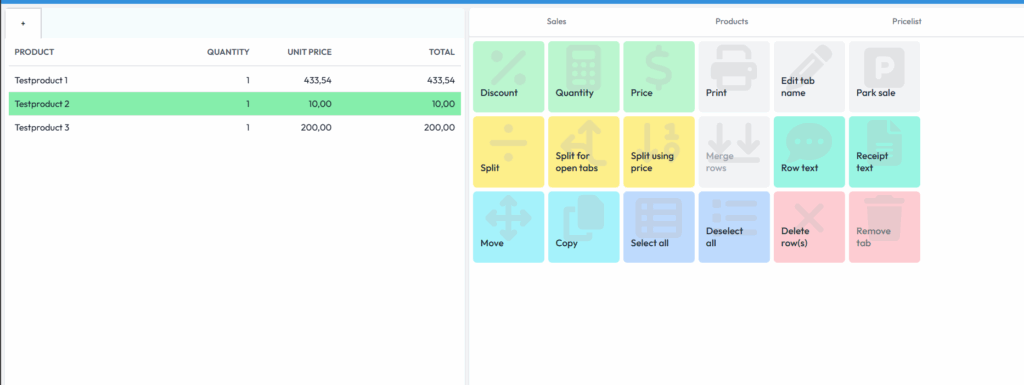
After selecting the products you want to modify, you have the following options:
Discount – apply discounts as percentages or euros
Quantity – change the quantity of products in the shopping cart
Price – adjust the selling price of the products
Print – you can send the products as a temporary receipt to the printer or kitchen printer.
Edit tab name – you can change the name of the tab (e.g. table number, reservation name, etc.).
Park sale – pauses the sale for later charging (e.g. restaurant table sales, reservations, etc.).
Split – divides the products into two, but keeps them in the same tab.
Split to open tabs – if you have multiple open tabs, this distributes the selected products evenly across all bills.
Split by price – can only be used for one product. Select the amount the first payer will pay and tap the plus sign to split the rest. If there are multiple payers, you can do this multiple times and select “Split line to tabs”.
Merge lines – merges split products.
Line text – allows you to write a message or use one of the predefined texts on the product line (e.g. which potatoes, allergies, etc.).
Receipt text – allows you to write a message or use one of the predefined texts on the product line (e.g. warranty texts).
Move – moves the selected products to other tabs
Copy – creates a copy of the selected products
Select all – selects all products in the shopping cart
Deselect all – deselects all products in the shopping cart
Delete line(s) – removes the selected lines from the shopping cart
Delete tab – removes the tab completely
Comments
0 comments
Please sign in to leave a comment.