All functions and errors of the Vektori till, as well as sales, can be found by tapping the gear icon or the "Functions" button in the top right corner of the Vektori app and selecting "Logs".
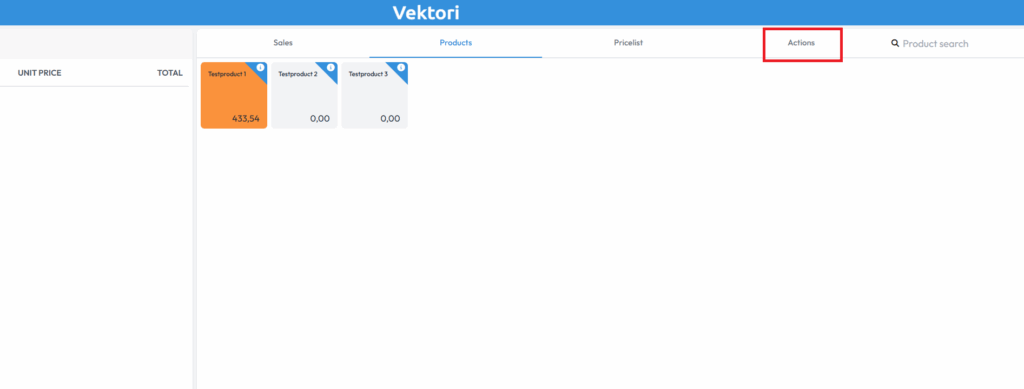
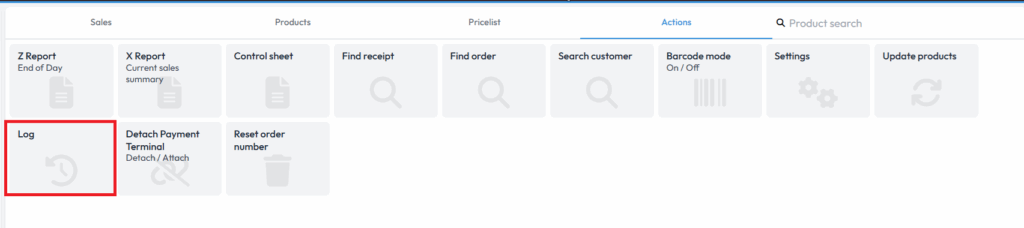
You will find timestamped error codes and actions, such as cancelled sales, deleted lines, till start-ups, etc.
By tapping the dropdown menu, you can switch the selection between "All", "Action", "Warning" and "Error".
The most common connection errors are shown on the Vektori till home menu – depending on the orientation of the Vektori app (landscape/portrait), you should see a circle indicating the connection status.
In landscape mode, it is found next to the Vektori text, and a check mark means the connection is fine. Possible errors are shown with an exclamation mark, and you can find out what the problem is by tapping it.

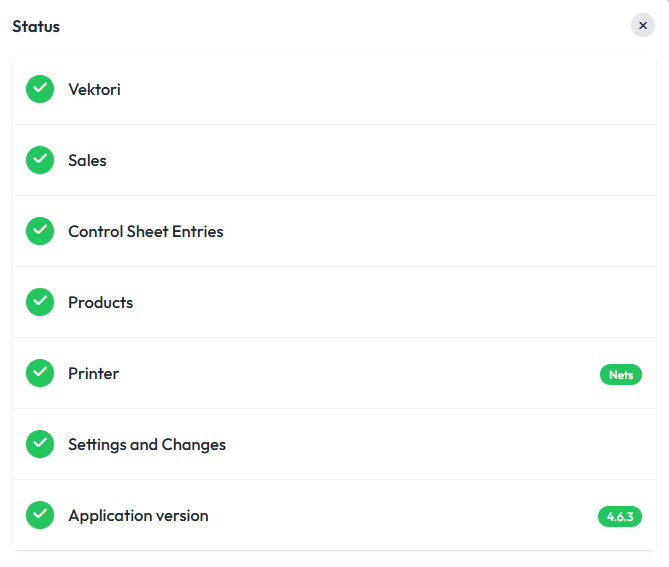
In portrait mode, the circle is located in the top right corner.
The most common connection errors, which do not always appear, relate to cloud services – sometimes the Vektori app sends a sales transaction via the ECR connection, but the receiving payment terminal does not receive the sales transaction.
In such cases, the problem can usually be fixed by tapping the gear or "Functions" button, tapping "Settings", selecting "Payment terminal", changing the "Selected payment terminal" setting to "None", clicking the back arrow, returning to the "Selected payment terminal" section and selecting the active payment terminal again to restore the connection between the Vektori app and the POS terminal. It is also recommended to do this for the "Receipt printer".
We also recommend trying to restart the payment terminal.
Continue sales as normal once the connection has been restored.
Comments
0 comments
Please sign in to leave a comment.